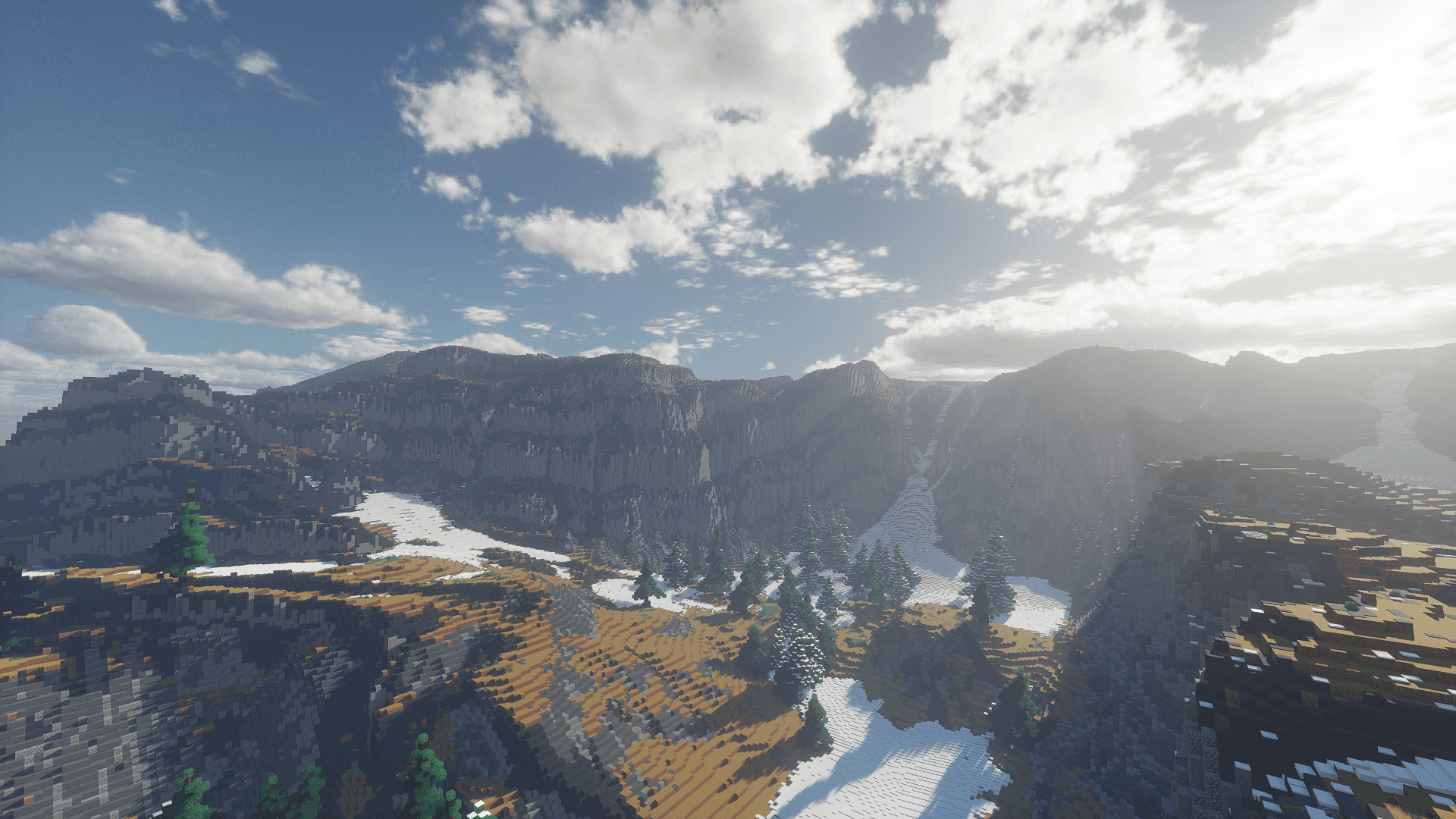
Derivative shader
20 MBRealistic lighting, shadows, and water. Runs through Iris, which is already in the modpack. Version d24.4.4 by HaringPro.
Minecraft Java 1.21.1 · NeoForge 21.1.265
The Chuds Rot Here.
A friendly modded survival server for building, exploring, and messing around with your friends. Bring a pickaxe and leave other people's stuff alone.
www.chudsincorporated.online
Pinging…
Chuds On MC 4 Life is a small, friendly Minecraft server. People build bases, go on mining trips, raid dungeons, and occasionally get eaten by something from a mod nobody read about.
The mods add better dungeons and strongholds, towns to find, a whole underground dimension, bosses, furniture, cooking, backpacks, a minimap, and recipe lookup. It still feels like Minecraft, just with more to do.
The big rule is no griefing. If you didn't build it, don't break it, change it, or take from it. That's what keeps the server worth playing on.
Six of them. They're short on purpose.
Page 1 of 2
Don't break, change, burn, or flood anything you didn't build. That includes "jokes".
Other people's chests, farms, and animals are theirs. Dungeon loot is fair game, and Lootr gives everyone their own.
No bullying, hate, or harassment. Banter is fine. If someone asks you to stop, stop.
Page 2 of 2
Younger players are on here. Keep it PG and don't spam.
No hacked clients, X-ray, or dupe glitches. Everything on this site's downloads page is allowed.
Ask before building next to someone, and only fight players who agreed to fight.
If you break a rule, admins can warn, kick, or ban you depending on what happened. Griefing is usually a straight ban.
If you see someone breaking one, take a screenshot and tell an admin. Please don't try to get even yourself.
BlueMap renders the whole world and keeps it updated as people build. Find your base, scout for villages, or see what everyone else has been up to.
Rankings are tracked by the Leaderboards mod and you can see them in game. They aren't shown on this website yet.
You need the first three to join. The shader and resource packs are optional. The install guide walks through what to do with each file.
Bigger dungeons, new places to get lost, and loot that's actually worth it.
New critters, rude new creepers, and several reasons to carry a sword.
Furniture, storage, farming, and fewer tears when you die in lava.
Smoother frames, shader support, a minimap, and recipe lookup.
These don't add much on their own, but other mods need them to run. Don't delete them!
These make the game look a lot nicer but need a decent computer. Get the game working first, then add them.
Realistic lighting, shadows, and water. Runs through Iris, which is already in the modpack. Version d24.4.4 by HaringPro.
Eight packs in one zip. Turn on whichever ones you like.

Fresh Animations
Mobs move, blink, and react more naturally.

Better Leaves
Fuller, bushier trees.

Fancy Crops
Nicer looking farms.

Os' Colorful Grasses
Little flowers and color in tall grass.

Dramatic Skys
Custom skies, sunsets, and clouds.
Default Dark Mode
Dark menus and inventories.

Default HD 128x
Sharper vanilla textures. Heavy on older computers.

Patrix 32x
Realistic textures. Made for a newer version, so Minecraft shows a warning.
Written for people who've never installed a mod. Do the steps in order and you'll only have to do this once. You're setting up three things that must match the server: Minecraft Java 1.21.1, NeoForge 21.1.265, and the modpack.
This server only works with the Java Edition of Minecraft. Bedrock (Xbox, PlayStation, Switch, phones, tablets) can't connect.
NeoForge builds on top of the normal 1.21.1 game files, so they need to exist first. This also creates your Minecraft folder.
NeoForge is the mod loader: the part that lets Minecraft load mods. The server uses NeoForge, so you need it too. Regular Forge and Fabric won't work.
neoforge-21.1.265-installer.jar from the Downloads section..minecraft).Double-clicking didn't open the installer?
If the file opens in WinRAR or 7-Zip, Windows asks “How do you want to open this file?”, or nothing happens, your computer needs Java to run the installer:
.msi file).The first NeoForge launch finishes setting things up and creates the mods folder you'll need next.
Recommended: give Minecraft more memory
Modpacks need more memory (RAM) than normal Minecraft. In the launcher, go to Installations, hover over NeoForge, click the ⋯ button, then Edit → More options. In JVM arguments, change only the first part, -Xmx2G:
-Xmx6G-Xmx4GClick Save. Don't change anything else in that box.
Everyone on the server needs the exact same 59 mods. If yours don't match, the server will refuse to let you in.
chuds-client-mods.zip (166 MB) from the Downloads section.%APPDATA%\.minecraft and press Enter. Your Minecraft folder opens.mods. If it's not there, create a new folder and name it mods (all lowercase).mods folder already has files in it from another modpack, move them somewhere else (like a folder on your desktop) so they don't clash.chuds-client-mods.zip, choose Extract All…, then Extract.mods folder.Double-check this. It's the #1 mistake!
The mods folder should contain about 59 files ending in .jar, sitting directly inside it. Not a .zip file, and not another folder inside the mods folder. Minecraft can't see mods hidden in a folder.
This saves the server in your Multiplayer list so you only have to do it once.
www.chudsincorporated.onlineClick Done. Remember: this is not the website address.
You made it. Time to rot with the chuds.
Shaders add realistic lighting, shadows, and water. They're pretty, but they need a strong graphics card.
derivative-main-d24.4.4.zip. Don't unzip it.%APPDATA%\.minecraft) and then the shaderpacks folder. Create it if it doesn't exist..zip into shaderpacks.Game got slow?
Press K in game to switch shaders off and on, or pick OFF in the Shader Packs menu.
Resource packs change textures and animations: fancier grass, leaves, crops, skies, and mobs.
chuds-resource-packs.zip and extract it (right-click → Extract All…). Inside are several smaller .zip files. Each one is a pack..zip files into the resourcepacks folder inside your Minecraft folder. Don't unzip them.Heads up
The HD packs (Default HD 128x and Patrix 32x) look great but are heavy. Turn them off if your game stutters.
This server only works with the Java Edition of Minecraft. Bedrock (Xbox, PlayStation, Switch, phones, tablets) can't connect.
NeoForge builds on top of the normal 1.21.1 game files, so they need to exist first. This also creates your Minecraft folder.
NeoForge is the mod loader: the part that lets Minecraft load mods. The server uses NeoForge, so you need it too. Regular Forge and Fabric won't work.
neoforge-21.1.265-installer.jar from the Downloads section.minecraft).macOS won't open the installer?
If it says the app can't be opened or is from an unidentified developer: click Done or OK, open System Settings → Privacy & Security, scroll down, and click Open Anyway next to the message about the installer. Confirm, and the installer opens.
If it says you need Java (a “JDK”): go to adoptium.net, download Temurin 21 for macOS (the .pkg file: choose aarch64 for Apple M-series Macs, x64 for older Intel Macs), install it, then double-click the NeoForge installer again.
The first NeoForge launch finishes setting things up and creates the mods folder you'll need next.
Recommended: give Minecraft more memory
Modpacks need more memory (RAM) than normal Minecraft. In the launcher, go to Installations, hover over NeoForge, click the ⋯ button, then Edit → More options. In JVM arguments, change only the first part, -Xmx2G:
-Xmx6G-Xmx4GClick Save. Don't change anything else in that box.
Everyone on the server needs the exact same 59 mods. If yours don't match, the server will refuse to let you in.
chuds-client-mods.zip (166 MB) from the Downloads section.~/Library/Application Support/minecraft and press Return.mods. If it's not there, create a new folder and name it mods (all lowercase).mods folder already has files in it from another modpack, move them somewhere else (like a folder on your desktop) so they don't clash.chuds-client-mods.zip. macOS unzips it into a normal folder.mods folder.Double-check this. It's the #1 mistake!
The mods folder should contain about 59 files ending in .jar, sitting directly inside it. Not a .zip file, and not another folder inside the mods folder. Minecraft can't see mods hidden in a folder.
This saves the server in your Multiplayer list so you only have to do it once.
www.chudsincorporated.onlineClick Done. Remember: this is not the website address.
You made it. Time to rot with the chuds.
Shaders add realistic lighting, shadows, and water. They're pretty, but they need a strong graphics card.
derivative-main-d24.4.4.zip. Don't unzip it.~/Library/Application Support/minecraft) and then the shaderpacks folder. Create it if it doesn't exist..zip into shaderpacks.Game got slow?
Press K in game to switch shaders off and on, or pick OFF in the Shader Packs menu.
Resource packs change textures and animations: fancier grass, leaves, crops, skies, and mobs.
chuds-resource-packs.zip and extract it (double-click it). Inside are several smaller .zip files. Each one is a pack..zip files into the resourcepacks folder inside your Minecraft folder. Don't unzip them.Heads up
The HD packs (Default HD 128x and Patrix 32x) look great but are heavy. Turn them off if your game stutters.
Find the message you're seeing and open it for the fix. Most problems come down to the wrong version, the wrong mod loader, or mods in the wrong folder.
mods folder and move everything out of it (for example, to a folder on your desktop)..jar files directly into mods. No folders inside, no extra mods.mods folder only has the modpack's .jar files, with no duplicates and no leftovers from other packs.crash-reports folder, or latest.log from the logs folder. Both are inside your Minecraft folder.This server is Java Edition only because it uses mods. You'll need Minecraft Java Edition on a Windows PC or Mac.